
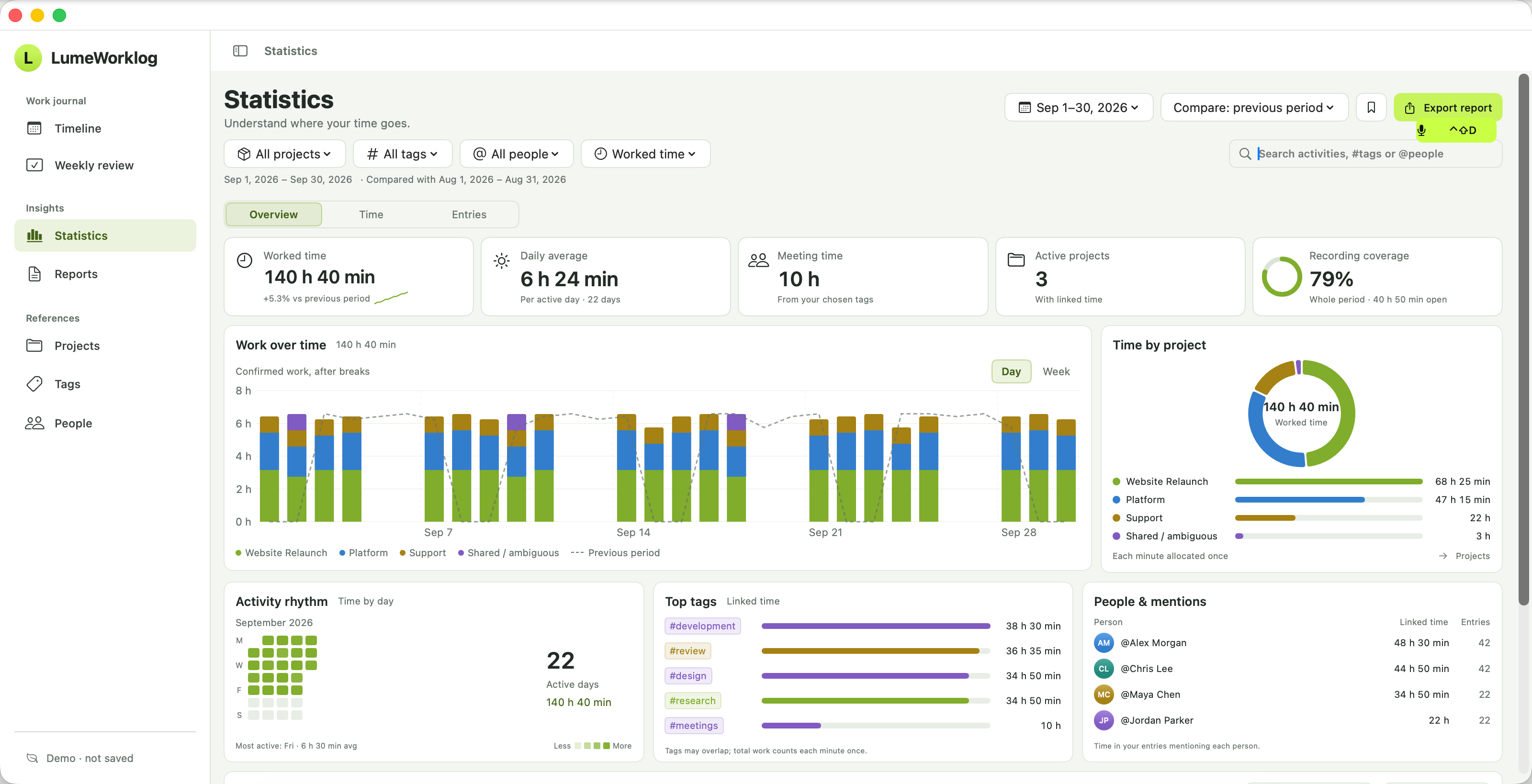
Time totals
Work over time, meeting hours and recording coverage in one view.
 LumeWorklog
Log project hours, review your week and export PDF or CSV reports. A local Mac worklog for freelancers, consultants and support work.
macOS 14+ · Apple silicon
No account · No subscription
Free to use. Unlimited worklogs, projects and reports.
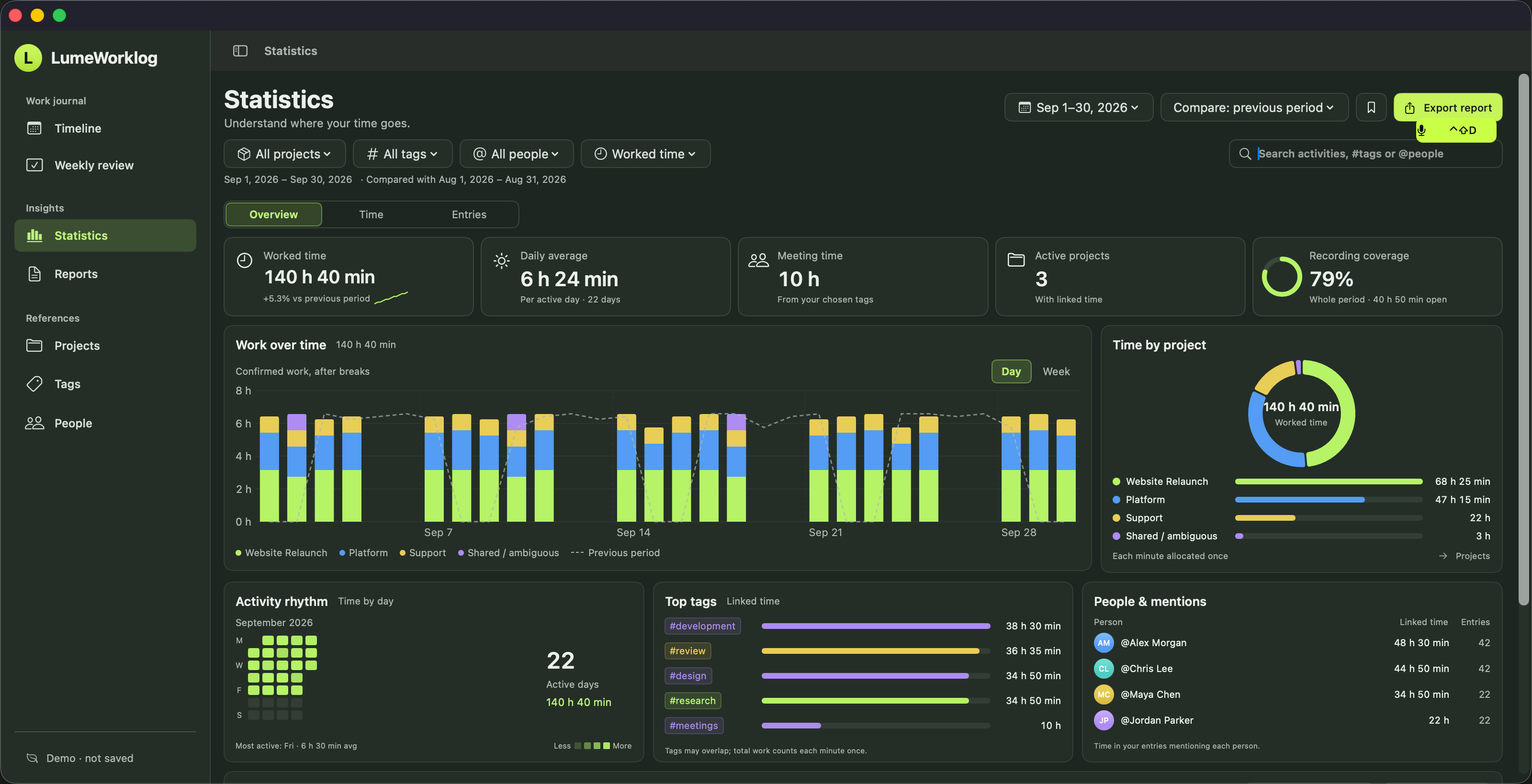
Work over time, meeting hours and recording coverage in one view.
Mark tags as projects to group their recorded time.
Filter activities and open their notes and times.
See where your work hours go. Switch between project totals, activities, people and the daily timeline.
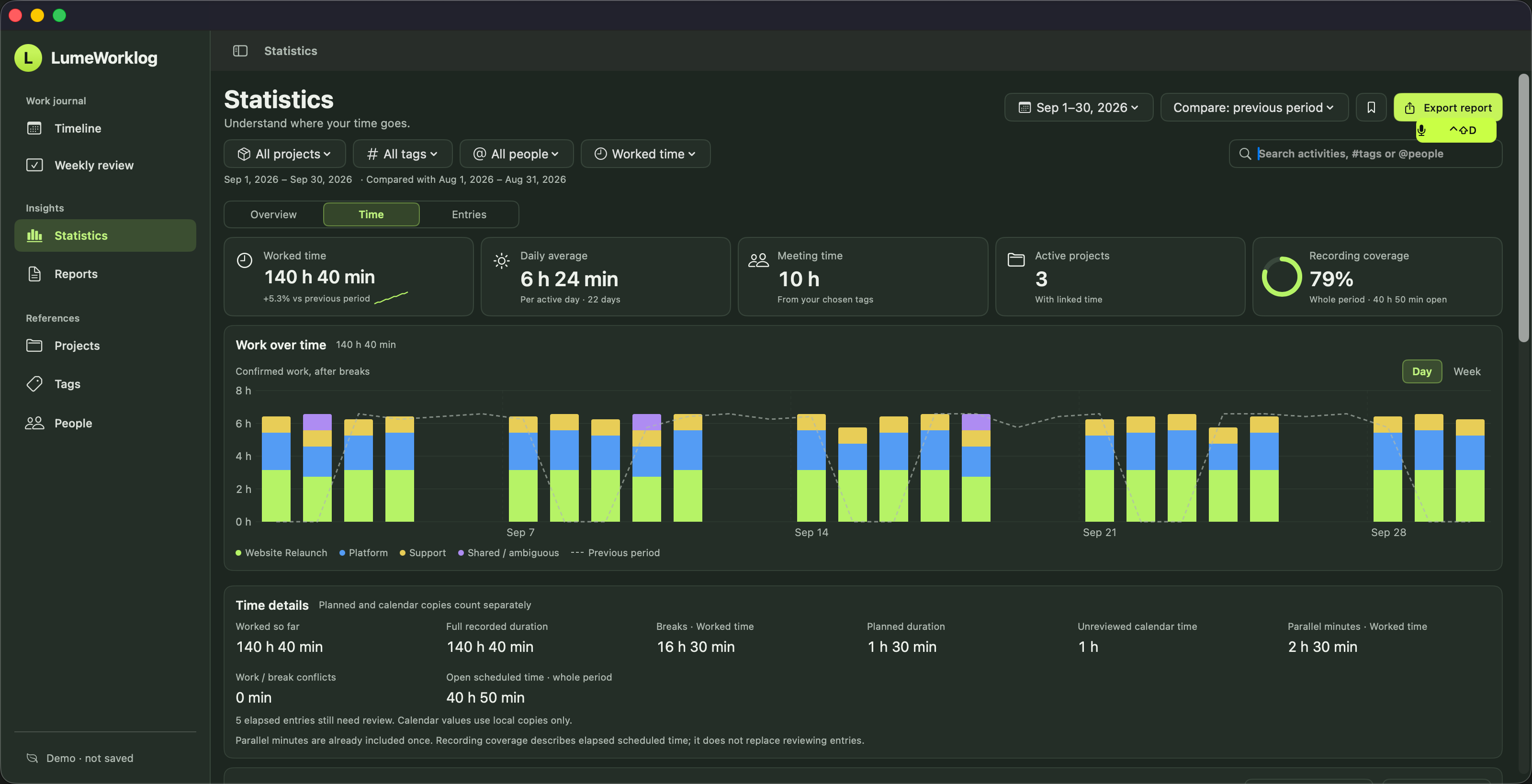
Tags and saved views. Choose which tags represent projects or meetings. Keep useful views for next time.
People mentioned in entries. See time in your entries that mention someone. These are mentions in your records, not a measure of their productivity.
Statistics export. Export the selected statistics as PDF or CSV. Notes stay out unless you choose to include them.
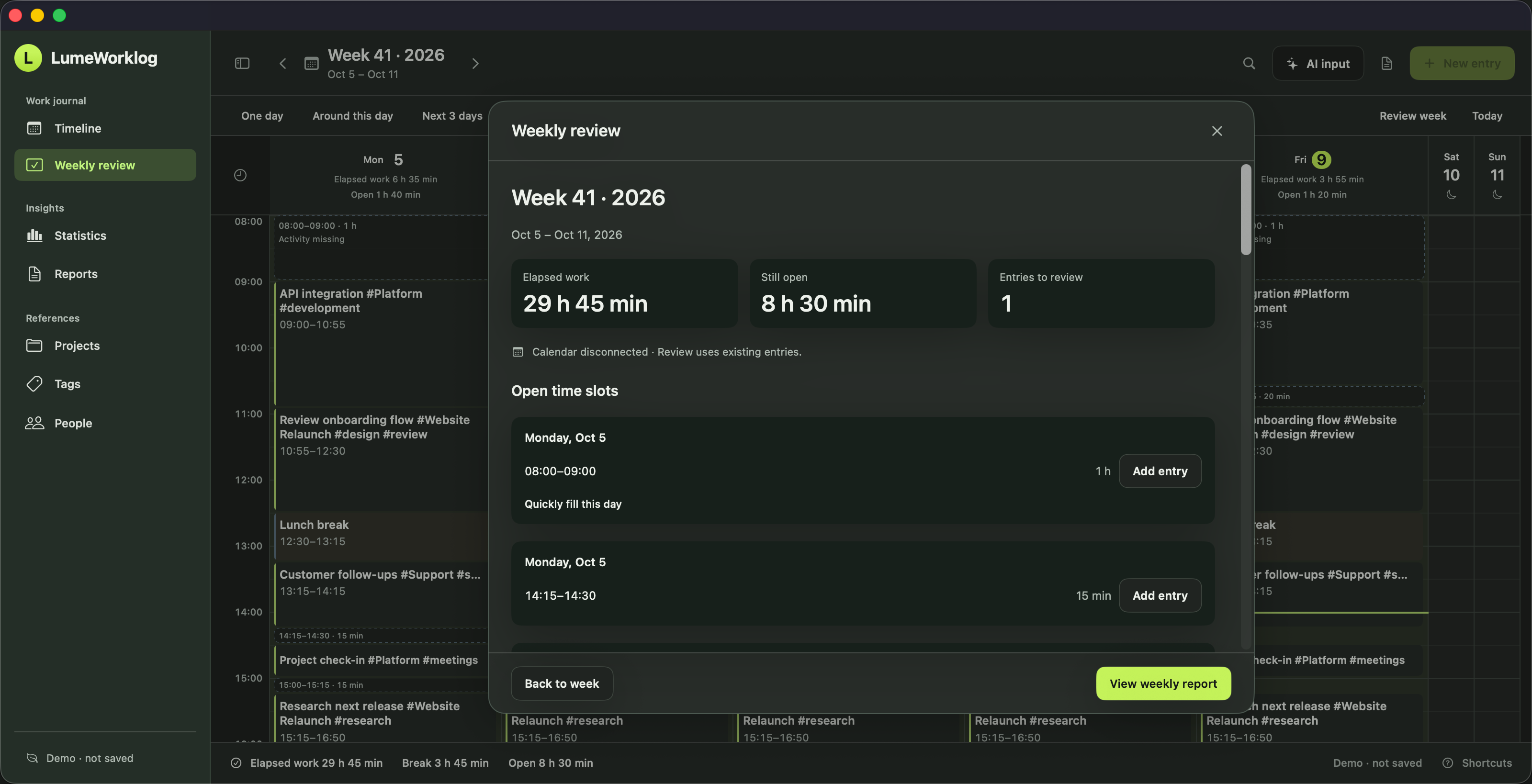
Check unrecorded time, planned activities and calendar copies before preparing a report.
See past gaps against your work schedule and fill them in.
Review planned work, calendar copies and overlap notes.
Open the weekly report, choose your notes and export.
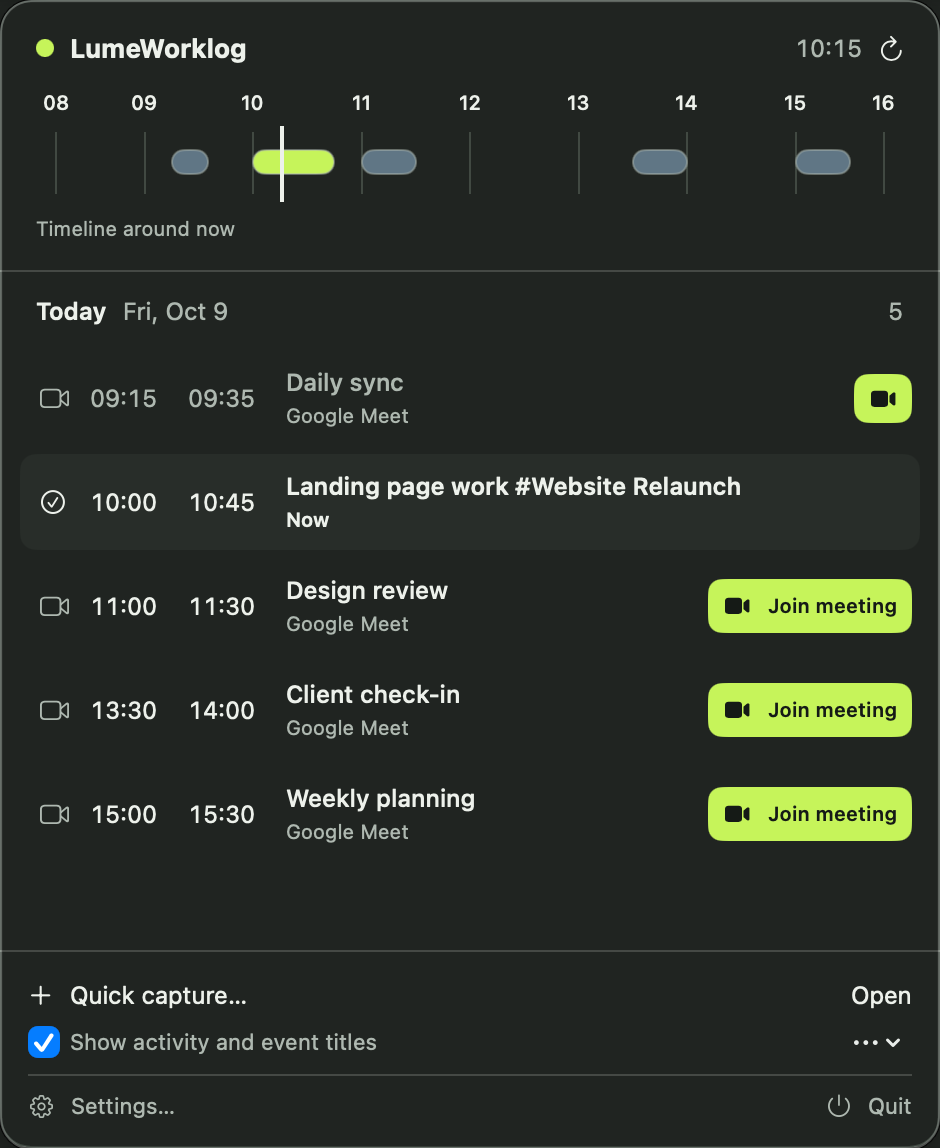
Check today’s agenda and open meeting links without opening the main window.
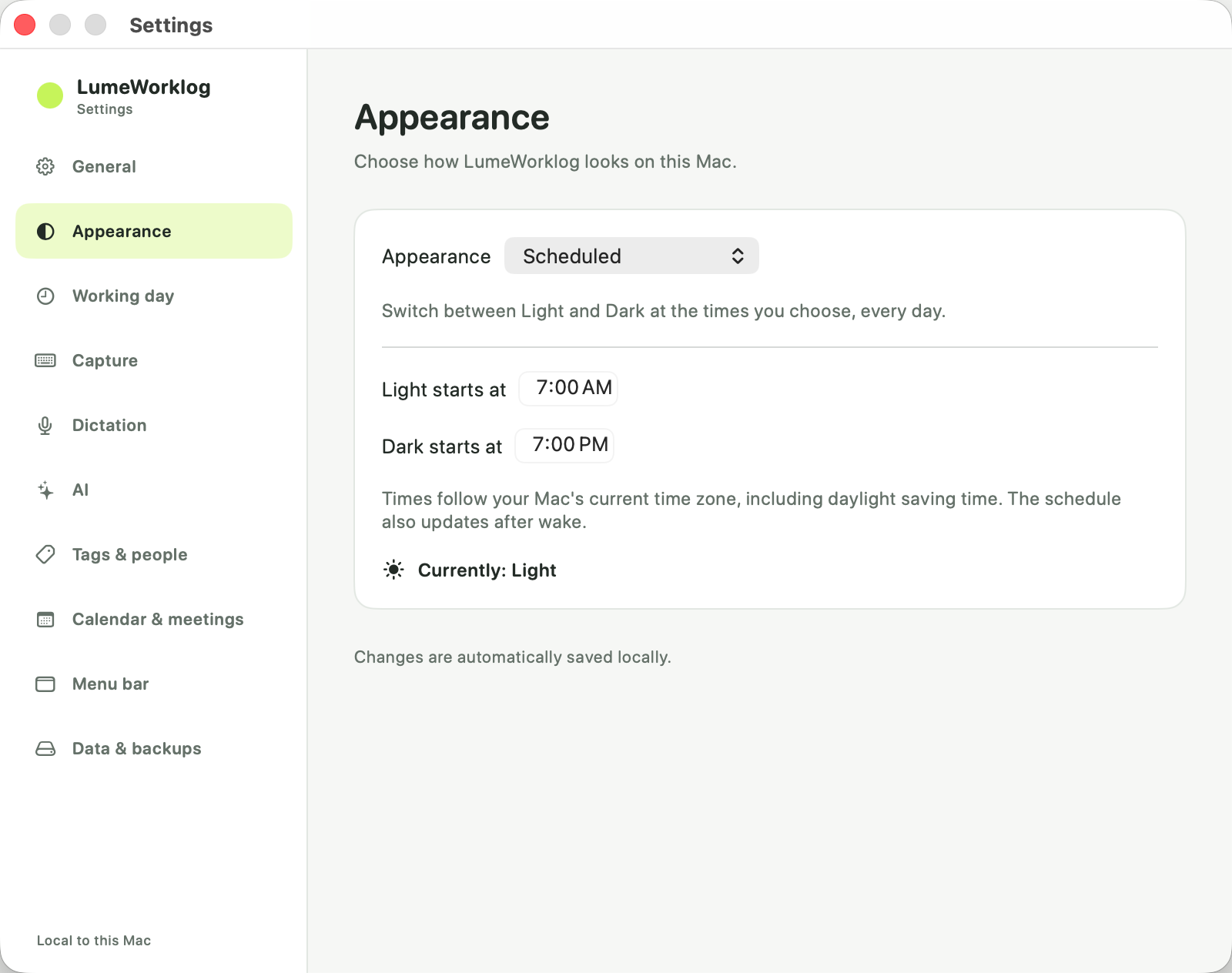
Choose Light or Dark, follow macOS, or set a daily schedule.
Find all four options in Settings → Appearance. Your choice stays on this Mac.
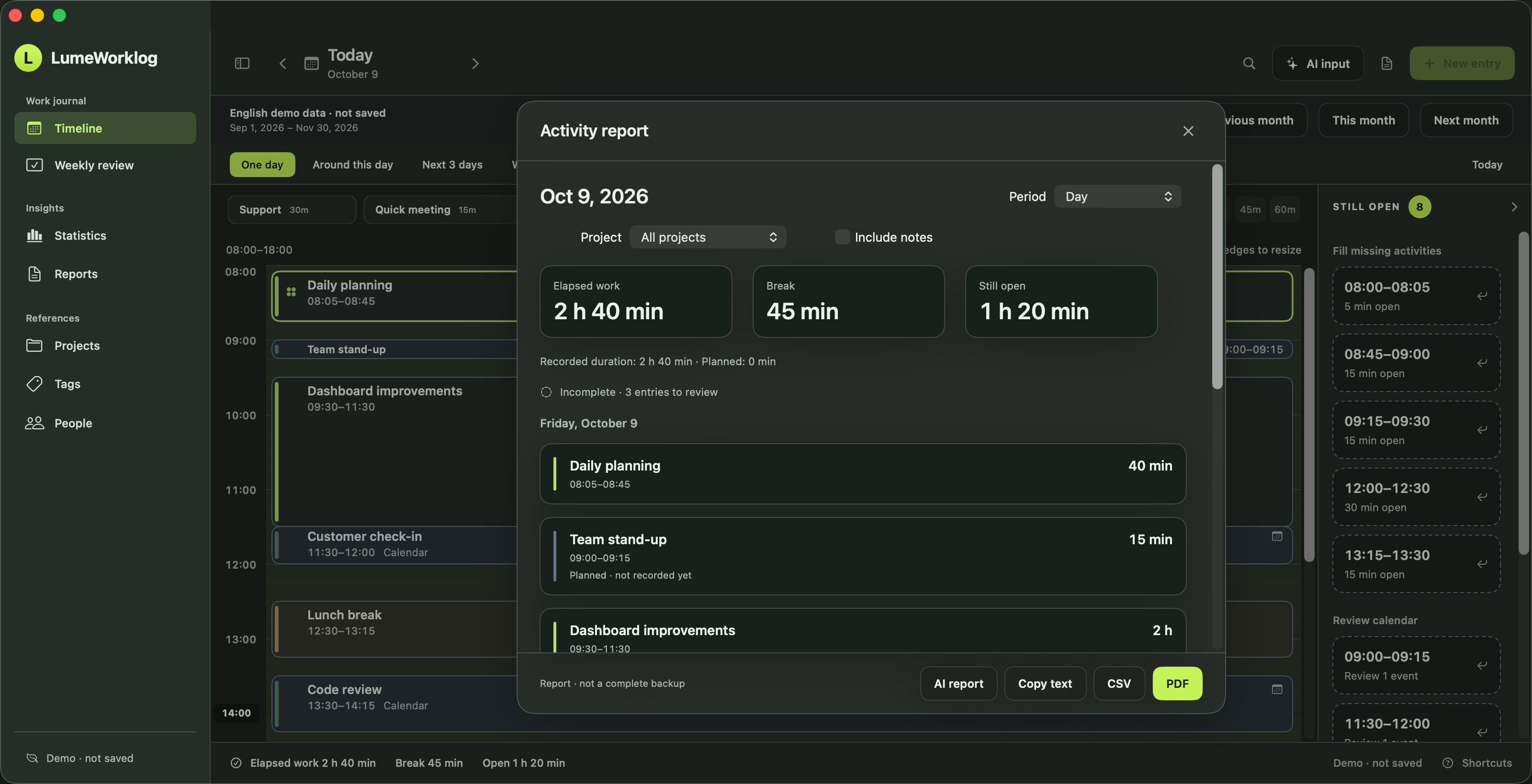
Turn your recorded work hours into a weekly report for a client or team. Keep the project details and notes together when preparing your timesheet.
The demo contains three months of example entries in a separate window. Changes there do not affect your own worklog or calendar.
After opening the app, choose Demo → Three months of demo data. Add an activity, change its time and open Statistics from the sidebar. In Tags, choose which of your tags are projects or meetings.
DownloadA workflow for your working week
Yes. LumeWorklog is free to download and use, with unlimited worklogs, projects and standard reports. No account, payment details or subscription required. Optional OpenAI features use your own API key and may incur provider charges.
Yes. Use tags for projects, add notes to your activities and review the recorded hours in Statistics. Filter reports by project when preparing an update for a client.
You add your activities; LumeWorklog does not monitor your apps or browser history. Calendar events can be confirmed as work automatically or kept for review, according to your settings.
No. Calendar access is optional and read-only. Adjusting a meeting in your worklog leaves the original appointment unchanged. See how calendar time tracking works.
Yes. Manual entries and standard PDF, CSV and text reports work offline. OpenAI features, meeting links, updates and technical statistics use the network. Worklogs have no cloud sync.
Yes. Choose a week and project, review the hours and decide whether to include notes. Export a PDF or CSV report, or copy the text into your weekly update.
Worklogs are stored on your Mac. Entries, notes and calendar content are not included in technical statistics.
Optional usage statistics are enabled for new installations and can be turned off in About. Update checks send separate technical counters regardless of that setting. The data pages explain both.
Keep regular external backups of important work records.
What is transmitted · Privacy detailsFree to use · No subscription
Unlimited worklogs, projects and reports. All on your Mac.
Installation instructions and release notes are on the download page.