
 LumeWorklog
Calendar time tracking on your Mac
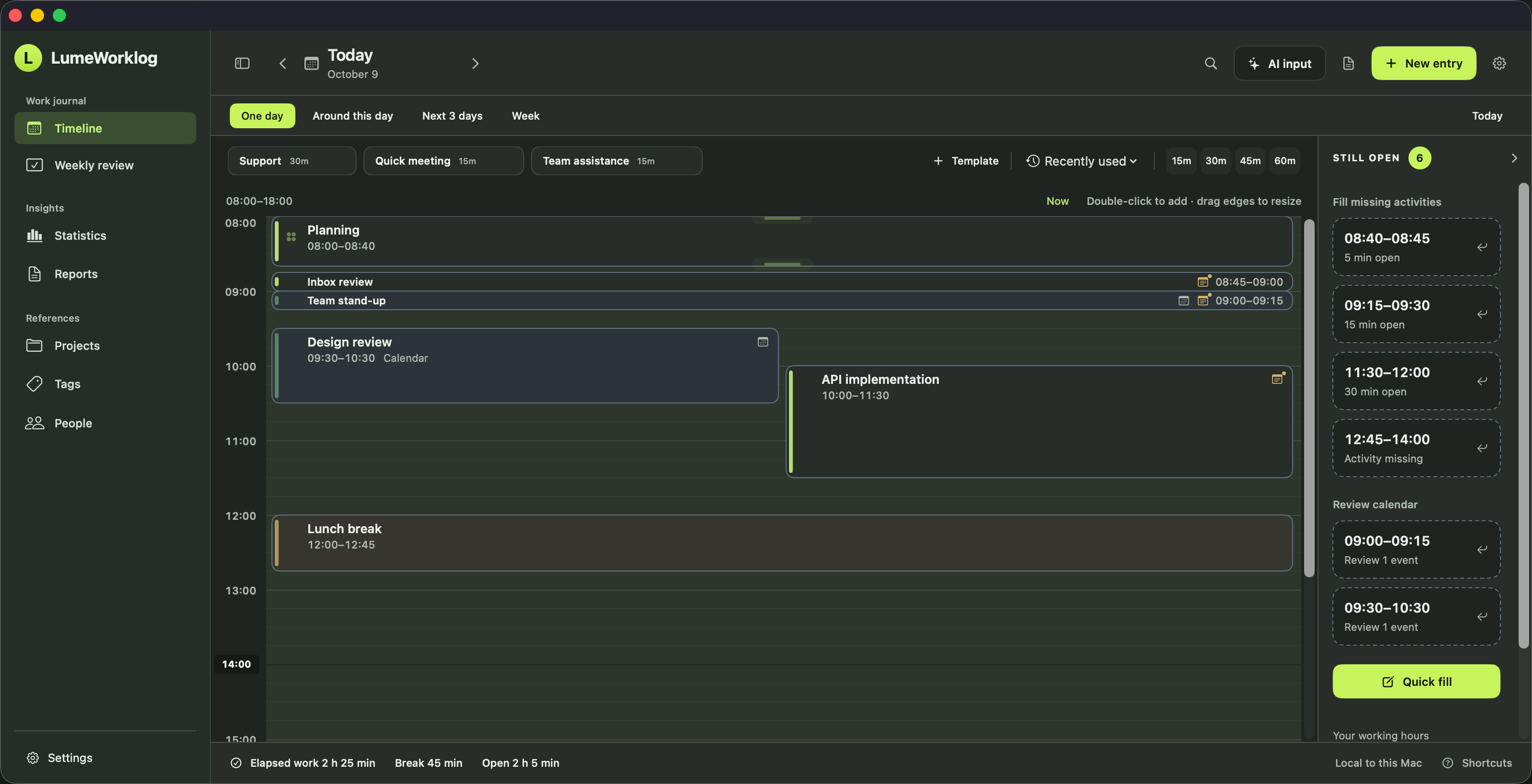
Turn Apple Calendar events into worklog entries on Mac. Choose automatic confirmation or review meeting time yourself. Original appointments stay unchanged.
Steps
- Choose the calendar
Allow optional, read-only access to calendars available through Apple Calendar on your Mac. Select the calendar you want to use for your worklog.
- Choose confirmation
Choose whether timed events become confirmed work automatically or remain calendar copies for review. Change this choice later in Settings.
- Keep actual times
Adjust the worklog entry if a meeting ran longer, ended early or was cancelled. Check the actual meeting time before including it in a weekly report.
A calendar event records a plan, not proof of attendance. LumeWorklog does not edit or delete the source appointments, and worklog changes do not sync back to your calendar.
Try it on your Mac
Requires macOS 14 or later on Apple silicon. The app includes a separate demo with example entries.
Installation and example-data instructions